Fly a live flight
A live flight turns Navigator into a timing instrument: it follows your position, works out whether the current leg is running early or late, and tells you what ground speed will fix it. When you land, it grades the flight from the track it recorded.
Before you start
Have your .fpl on the device and your planned leg times worked out —
see Prepare a route. If you are using GDL90, confirm you are on the
receiver's Wi-Fi network. Navigator holds the screen awake for the whole live session, so you
do not need to change Auto-Lock.
Setting up
Tap Start Live Flight, the button floating at the bottom right of the Flights screen. The setup form has four sections.
ForeFlight .FPL
Tap Import .FPL Route and pick your file. On success the section shows the loaded byte count, the Route section fills with your waypoints and their coordinates, and the Planned Legs section generates one row per leg.
If nothing appears, the file did not parse — see Troubleshooting.
Location Source
Pick Device GPS or GDL90. This is fixed for the flight; to change it you have to back out and start over.
Rotation Speed
The ground speed, in knots, at which Navigator considers you airborne. Default is 40 kts.
This single number does more than it looks like it does. It is the takeoff detection threshold, it is the speed floor for automatic leg switching, and after the flight it is the speed below which leading track points are trimmed off. Set it below your actual rotation speed but above your taxi speed. For most light singles the default is fine; a fast airplane or a windy taxiway may want it higher.
Planned Legs
One row per leg, labelled Leg n: FROM → TO. Type the planned time and use the toggle to
mark the leg scored or unscored. A scored leg with an empty time shows "Planned time is
required for scored legs" in red and blocks the start button.
Start Live Flight enables once the route has at least two waypoints and every scored leg has a time.
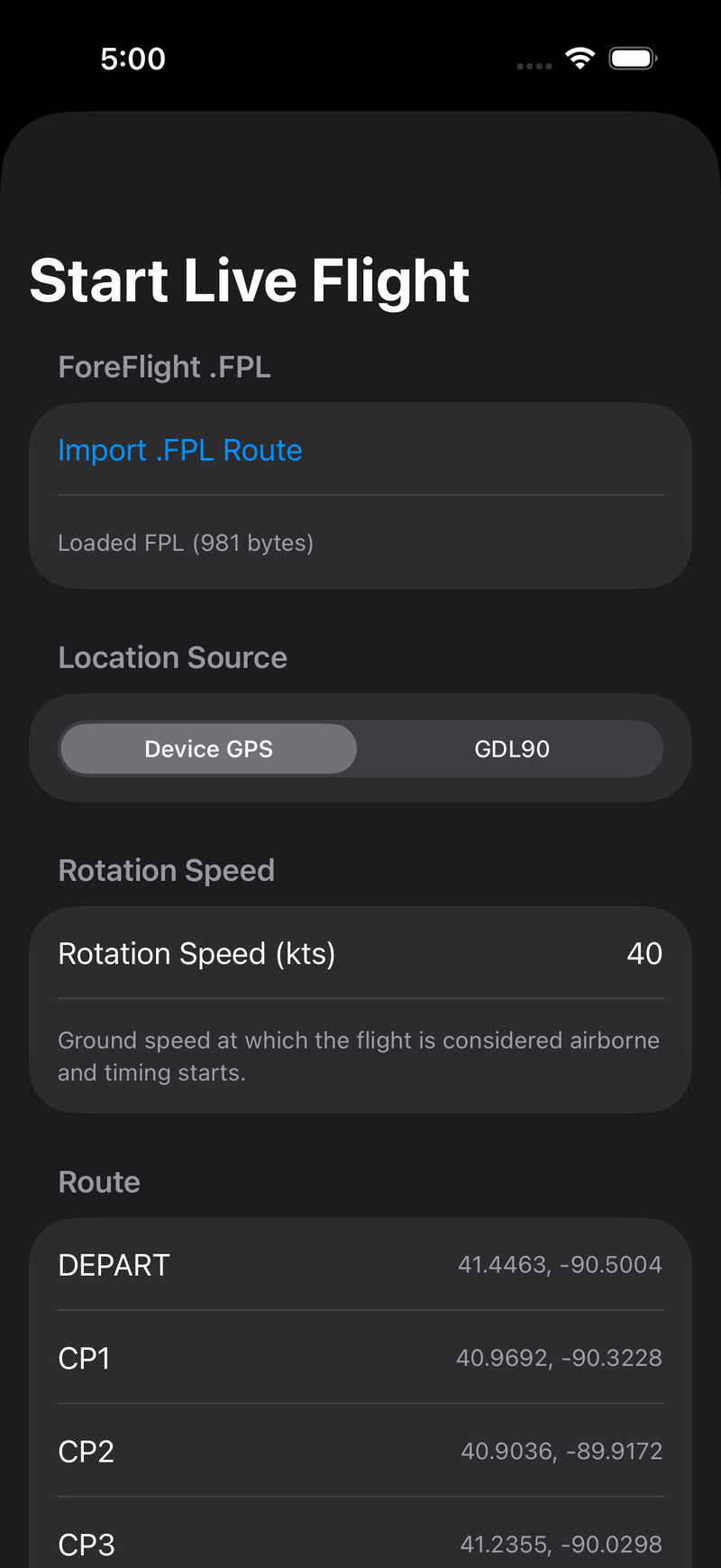
The setup screen after importing a route. The Route section confirms what Navigator
parsed out of the .fpl.
In the air
The live screen fills the display. Before takeoff it shows Ready for Departure and a PRE-FLIGHT pill.
Timing starts one of two ways:
- Automatically, the moment your ground speed reaches the rotation speed you set. The pill flips to AIRBORNE and leg 1's clock starts.
- Manually, by tapping Start. Use this if you want the clock to start on a specific event — crossing a start gate, or a rolling start — rather than at rotation.
Once airborne, the panel switches to the delta card and the four instrument tiles. What each one means, and how to fly to them, is covered in Reading the instrument panel.
Legs advance by themselves
Navigator watches each leg for one of two outcomes. Both need at least 5 seconds since the last switch, and a ground speed above 20 knots — a floor that only rules out GPS faults, so a slow aircraft into a strong headwind still advances.
A pass is called when your closest approach came inside the checkpoint radius (0.75 NM by default) and you have since opened up 25 m. The switch therefore fires as you leave the checkpoint, not as you approach it, because Navigator waits to see the closest point before deciding where it was.
The passage time is interpolated along the line between fixes, not snapped to whichever fix happened to be nearest. A GPS gap straight over the checkpoint still records a pass at the right moment, and a slow-logging source doesn't drag the time late.
You get a success haptic, the progress bar fills another segment, and the next waypoint's identifier appears in the header. The AUTO pill tells you automatic switching is armed.
A miss is called when you went past a checkpoint without ever coming inside the radius. All of these must hold:
- the closest approach stayed outside the radius but within the scoring max penalty radius
- you crossed the checkpoint's gate — the line through it square to the inbound leg
- you then opened up 1.5 NM and 30 seconds
Navigator advances the leg with its passage recorded at the closest approach you actually flew, plays a warning haptic, and shows MISSED <waypoint> · UNDO in the header.
Tap it to take the switch back, including any legs caught up behind it. Navigator rebuilds the leg from the recorded track, leaves auto switching on, and won't call that checkpoint missed again — though flying back through it still counts as a pass.
Use it when an orbit to burn time happened to cross the gate. The gate test is independent of route shape, which is what makes it work on triangles and out-and-backs, but a deliberate hold can still trip it.
Turning short of a checkpoint — on an out-and-back, or a sharp turn — never crosses its gate, so no miss is called and the leg stays pointed at it. Use Leg Control → Jump to Leg.
Taking control
Leg Control at the bottom of the screen opens the in-flight menu:
| Action | What it does |
|---|---|
| Enable / Disable Auto Switch | Turns automatic leg advancement on or off |
| Jump to Leg… | Opens a picker; choosing a leg makes it current and restarts its clock |
| Edit Leg Times… | Changes the planned times without leaving the flight — see below |
| Restart Current Leg | Resets the current leg's clock to zero, keeping the leg |
| Restart Flight | Discards the recorded track and starts the whole flight over from leg 1 |
| End Flight | Stops tracking and computes the final score (confirms first) |
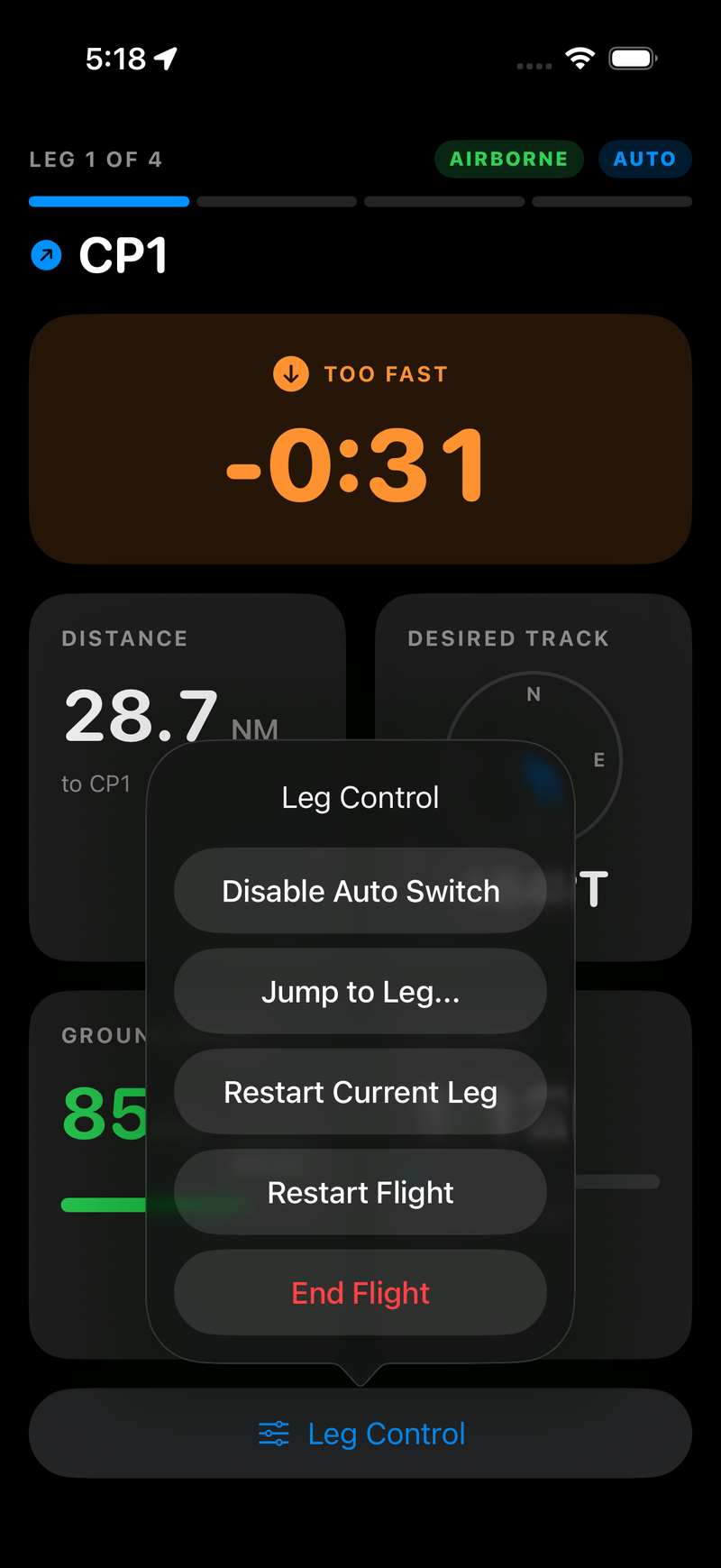
Leg Control keeps every in-flight override one tap from the panel.
Edit Leg Times opens the planned times for the whole route with ±30-second buttons on each leg and a running total, for when you are re-briefed in the air. Times are validated as you type and the editor won't let you save one Navigator can't parse.
Two things worth knowing:
- Jump to Leg turns auto switching off. Navigator assumes that if you are correcting it by hand, you want to keep the controls. Re-enable it from the same menu when you are ready.
- Restart Flight throws away the track. It is the "we're doing this again" button, not an undo. It asks for confirmation first.
Use Restart Current Leg when Navigator switched early — say a checkpoint sits close to your course to the next one. Use Jump to Leg when it missed a switch entirely and you are already a checkpoint ahead of it.
Finishing
When you pass the last waypoint the panel shows Flight Complete.
Open Leg Control → End Flight and confirm. Navigator stops tracking, grades the recorded track against your route, and shows the results sheet: total score, leg count, track points recorded, and the timestamp.
From there:
| Button | Result |
|---|---|
| Export JSON | Shares the full flight record — score, legs, settings, inputs — through the iOS share sheet |
| Export KML | Shares the recorded track as a gx:Track KML, openable in Google Earth or ForeFlight |
| Return to Menu | Returns to the Flights list |
You no longer have to remember to save. End Flight writes the flight to your Flights list itself — scored if it can be graded, otherwise as an unscored draft carrying its track and route so you can grade it later. Only a flight with no recorded track at all is not saved, and the results screen says so.
Navigator also saves a draft every two minutes during the flight, so if iOS terminates the backgrounded app you lose at most the last two minutes rather than the whole flight. Each save replaces the last, so you get one flight in the list, not a trail of them.
Secret checkpoints and fuel come afterwards
The live setup form has no fields for secret checkpoints or fuel, so a live flight is graded with both at zero. That is deliberate: neither is knowable in the air.
To add them, save the flight, open it from the Flights list, tap Edit, fill in the Secret Checkpoints and Fuel sections, and tap Grade Flight again.
The KML that Navigator saves for a live flight is a gx:Track carrying every fix's real
timestamp, so re-grading recomputes the same timing and elapsed points the flight finished with.
Adding secret checkpoints and fuel changes only those categories.
A live flight saved by an earlier build stored positions without timestamps and will not re-grade at all — its original score stands.